
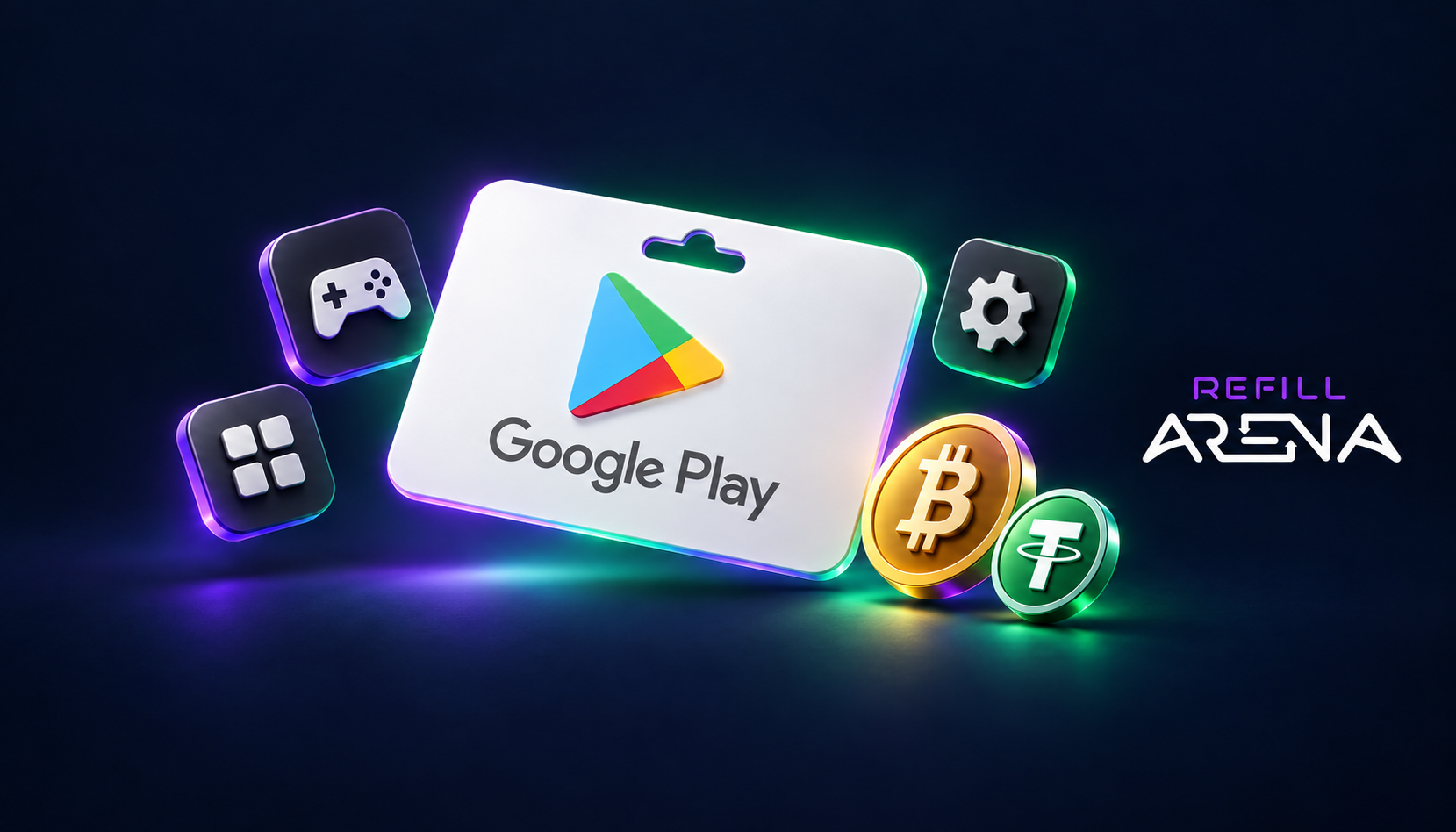
You can pay for a Google Play gift card with crypto on Refillarena. You choose a country and an amount, pay with Bitcoin, USDT or another supported coin, and the code arrives by email. No bank card is needed, and you do not have to register an account first.
This guide covers which country to pick, how to pay, how to redeem the code, and the mistakes that cause most failed redemptions.
Pick the card that matches your Google account country
A Google Play gift card only works on an account set to the same country. A US card will not load on a German account, and the reverse is true as well. Check your country under Google Play, profile icon, Settings, General, Account and device preferences, Country and profiles before you buy.
The Google Play page on Refillarena lists these regions: United States, United Kingdom, Eurozone (EU), Germany, Austria, Switzerland, Poland, United Arab Emirates, Saudi Arabia, India, Indonesia, Japan, South Korea, Brazil and Mexico. Amounts vary by region. The US card, for example, starts at USD 5 and goes up in steps (10, 15, 20, 25, 30, 40, 50, 60, 75, 100 and 125), while the Indian card is priced in rupees from INR 10 upward.
If your account country does not match the card region, Google rejects the code. Changing country on an existing account is limited by Google, so buy the card that matches the country you already have.
How to buy a Google Play gift card with crypto
- Open the Google Play gift card page.
- Select your region and the amount you want to load.
- Add it to the cart and enter the email address where the code should be sent.
- Choose a crypto payment method and send the exact amount shown at checkout.
- Wait for the network confirmation. The code is then emailed to you.
Stablecoins such as USDT are the simplest choice for small cards because the amount stays close to the card price. With Bitcoin, the final figure depends on the rate at the moment you pay, so check the amount on the payment screen before you send.
How to redeem the code
On Android:
- Open the Google Play Store app.
- Tap your profile picture in the top right corner.
- Go to Payments and subscriptions, then Redeem code.
- Type in the code and tap Redeem.
On the web: open play.google.com/redeem, sign in, enter the code and confirm.
The balance is added to your Google Play balance and is used automatically at the next purchase.
What the balance covers, and what it does not
- Apps, games and in-app purchases
- Subscriptions billed through Google Play
- Movies, TV shows and books
- Google Play Points
It cannot be turned back into cash, moved to another account, or used for hardware sold in the Google Store. Some subscriptions are excluded under Google's own terms.
Common problems
The code is rejected. In most cases the card region and the account country differ. Check the country first, then re-type the code instead of pasting it, in case a space was copied.
No email after payment. Look in spam and promotions folders. If the payment was confirmed on the network and nothing arrived, contact support with your order number.
You want to spend the balance on a subscription. Add the Google Play balance as your payment method inside the subscription settings. Some recurring payments fall back to a card if the balance runs out.
Is it safe?
Only redeem a code inside the Google Play app or at play.google.com/redeem. Nobody from Google, or from Refillarena, will ask you to read a code to them or send it in a chat. If someone does, it is a scam.
Ready to buy? Go to the Google Play gift card page, pick your region and pay with crypto.